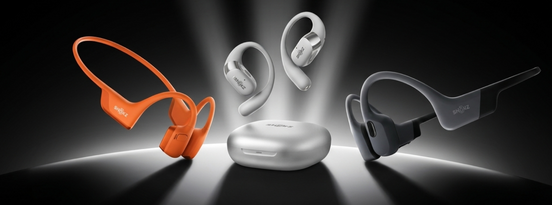

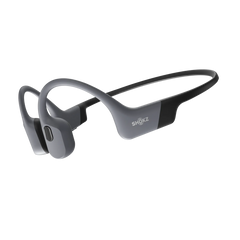


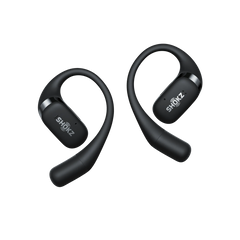
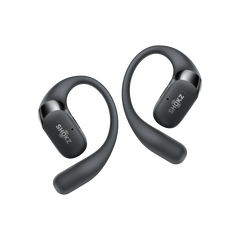


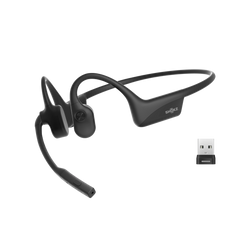
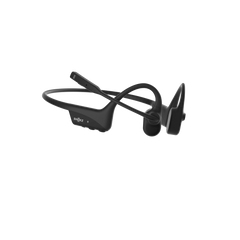


So you've just unboxed a new pair of Shokz headphones — nice one. Before you can enjoy that open-ear listening experience on your morning run or commute, there's one small step standing between you and your favourite playlist: pairing.
The good news is that pairing Shokz headphones is genuinely straightforward once you know where to look and what those flashing lights actually mean. Whether you're setting up your headphones for the very first time, connecting to a new phone, or trying to figure out why your headphones suddenly won't reconnect, this guide has you covered.
Let's get you sorted.
- How to Put Shokz Headphones into Pairing Mode
- How to Pair Shokz Headphones with Your Device
- How to Connect Shokz Headphones to a New or Multiple Devices
- Troubleshooting Shokz Pairing Problems
- Frequently Asked Questions
How to Put Shokz Headphones into Pairing Mode
Before your headphones can talk to your phone, laptop, or tablet, they need to be switched into pairing mode. Here's the general process:
- Start with your headphones powered off. This matters — most pairing sequences begin from an off state.
- Press and hold the power or multifunction button (the exact button and its location can vary slightly depending on your Shokz model, so it's worth glancing at the quick-start guide that came in the box if you're unsure).
- Watch the LED indicator. Once your headphones are ready to be discovered, the light will typically flash red and blue alternately, letting you know they're actively searching for a device to connect with.
- Your headphones are now in pairing mode and ready to show up in your device's Bluetooth list.
How to Pair Shokz Headphones with Your Device
Once your headphones are in pairing mode, the rest of the process happens on your phone, tablet, or computer. Here's how it looks across the most common devices.

Pair with an iPhone
- Put your Shokz headphones into pairing mode as described above.
- On your iPhone, open Settings > Bluetooth and make sure Bluetooth is switched on.
- Under "Other Devices," look for your Shokz headphones by name and tap to select them.
- Wait a moment — your iPhone will confirm the connection, and you'll typically hear an audio cue through your headphones.
Pair with an Android Phone
- Enter pairing mode on your headphones.
- On your Android device, go to Settings > Connected Devices > Pair New Device (menu names can vary slightly depending on your phone's manufacturer).
- Select your Shokz headphones from the list of available devices.
- Once connected, you should see a confirmation on screen and hear a tone in your headphones.
Pair with a Windows PC
- Put your headphones into pairing mode.
- On your PC, open Settings > Bluetooth & Devices > Add Device.
- Choose "Bluetooth" from the options, then select your Shokz headphones once they appear.
- Windows will confirm once pairing is successful.
Pair with a Mac
- Enter pairing mode on your headphones.
- On your Mac, open System Settings > Bluetooth.
- Your Shokz headphones should appear under available devices — click Connect.
- Once connected, your Mac will show the headphones as an active audio output device.
How to Connect Shokz Headphones to a New or Multiple Devices
Once you've paired your Shokz headphones with one device, you might want to switch to another, or even use two at once. Here's how.
Reconnect to a New Device
If your headphones are already paired with one device and you want to connect them to a different one, you'll generally need to put them back into pairing mode manually (using the steps outlined earlier) rather than relying on automatic reconnection. Once in pairing mode, follow the relevant device steps above to complete the new connection.
If your headphones seem to keep reconnecting to an old device instead of the new one, it can help to turn off Bluetooth (or "forget" the headphones) on the previous device first, then re-enter pairing mode.
Use Multipoint Pairing
Some Shokz models support multipoint pairing, which allows your headphones to stay connected to two devices at the same time — handy if you want to listen to music from your phone while staying ready to take a call on your laptop, for example.
Depending on your model, multipoint pairing can typically be set up in one of two ways:
- Via the headphone buttons, using a specific button combination while the headphones are in pairing mode.
- Via the Shokz App, where you can manage connected devices and switch between them with a tap.
Because the exact steps differ between models, it's best to check the manual that came with your specific headphones, or the Shokz App if your model supports it, for the precise process.
Troubleshooting Shokz Pairing Problems

Running into trouble getting your headphones to connect? Here are some things worth trying before you give up and chuck them back in the box.
● Check the battery. A flat battery is one of the most common (and easily overlooked) reasons headphones won't enter pairing mode. Give them a charge and try again.
● Restart Bluetooth on your device. Sometimes simply turning Bluetooth off and back on again on your phone or computer clears up a stubborn connection issue.
● Forget the device and start fresh. If your headphones are showing as paired but won't actually connect, remove them from your device's Bluetooth list, put the headphones back into pairing mode, and pair again from scratch.
● Move closer. Bluetooth has a limited range, and physical obstructions (walls, other electronics) can interfere with the signal. Stay within a few metres of your device while pairing.
● Close other Bluetooth connections. If your headphones are already connected to another device, they may not be discoverable for a new one. Disconnect or turn off Bluetooth on the other device first.
● Try a factory reset as a last resort. If nothing else works, resetting your headphones to factory settings will clear all previously paired devices and let you start over. The reset process varies by model, so check your headphones' user guide for the exact steps.
If you've worked through all of the above and you're still stuck, it's worth checking the Shokz support site for guidance specific to your model.
4.1Still Can't Get Connected? Here's Where to Go Next
If this guide hasn't sorted out your pairing issue, don't stress — the fastest way to a fix is to go straight to the source:
- Visit the Shokz Help Centre: help.shokz.com has model-specific troubleshooting articles and can point you toward a solution tailored to your exact headphones, or connect you with the support team directly.
- Grab the full user guide for your model: Pairing steps, button layouts and LED signals can differ slightly across the Shokz range, so it's worth downloading the PDF guide for your specific headphones:
○ OpenRun Pro 2 User Guide (PDF)
○ OpenSwim Pro User Guide (PDF)
○ OpenFit Pro User Guide (PDF)
Can't find your model above? The full library of Shokz user guides is available at help.shokz.com, along with articles covering setup, firmware updates and general troubleshooting.
Frequently Asked Questions
Why won't my Shokz headphones go into pairing mode?
This is usually down to low battery, or the headphones already being connected to another device. Make sure they're charged, powered off to start, and not currently linked to a different phone or computer.
Can I pair Shokz headphones with two devices at once?
Yes, on models that support multipoint pairing. This lets you stay connected to two devices simultaneously, so you can switch between them without repairing each time.
How do I know when my Shokz headphones are in pairing mode?
Look at the LED indicator on the headphones. Most models flash a specific colour pattern to signal they're ready to be discovered.
My headphones keep connecting to my old phone instead of my new one — what do I do?
Turn off Bluetooth (or forget the headphones) on the old device, then put your Shokz headphones back into pairing mode and connect to the new device as usual.
Do I need the Shokz App to pair my headphones?
No, the app isn't required for basic Bluetooth pairing. However, it can make things easier for features like multipoint pairing, EQ adjustments, and firmware updates, depending on your model.
Conclusion
Pairing your Shokz headphones really comes down to two simple steps: get them into pairing mode, then find and select them in your device's Bluetooth settings. Once you've done it the first time, reconnecting becomes second nature.
If you do hit a snag along the way, a quick battery check, a Bluetooth refresh, or forgetting and re-pairing the device will solve the vast majority of issues. And if you're ever unsure about model-specific steps like multipoint pairing or factory resets, your headphones' user guide (or the Shokz App) is the best place to double-check.
Still stuck after trying everything here? Head over to the Shokz Help Centre for model-specific support, or download the full user guide for your headphones from the links above.
Now go enjoy your tunes.