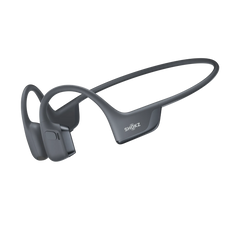
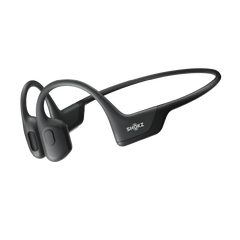

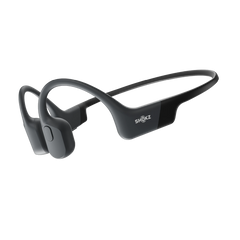
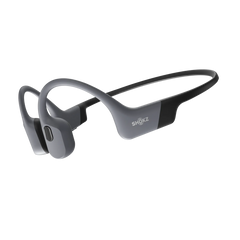




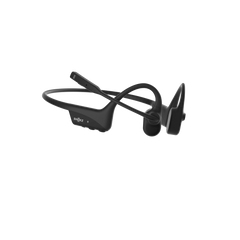


Getting a new pair of Shokz headphones up and running is easier than most people expect. Most models connect to a Bluetooth device in seconds — no wires, no fuss, just open-ear sound when needed.
That said, different Shokz headphones use slightly different pairing methods, and knowing the details up front saves a lot of confusion later.
This guide covers everything: first-time pairing, putting Shokz headphones into pairing mode, reconnecting after a reset, switching between devices, multipoint connection, and getting the most out of the Shokz App.
- How Bluetooth Pairing Works on Shokz Headphones
- How to Put Shokz Headphones in Pairing Mode
- Pairing Differences Between Shokz Models
- Connecting Shokz Headphones to Phones, Laptops & Smart Devices
- How to Connect Shokz Headphones After a Reset
- How to Connect Shokz Headphones to Multiple Devices
- Shokz App: Features, Benefits & Setup Guide
- Quick Pairing Tips for Everyday Use
How Bluetooth Pairing Works on Shokz Headphones
Think of pairing mode as your headphones stepping into a room and introducing themselves — they're broadcasting their name so nearby devices can find and connect securely. This process only needs to happen once per device.
After that, your Shokz headphones and your phone recognise each other and reconnect automatically.
Most Shokz models use Bluetooth 5.0 or later, which means faster pairing and better battery life.
Sometimes, things don’t go as planned. Maybe your headphones won’t show up in the Bluetooth menu, or you keep losing the connection after a reset.
That’s normal—it just means you’ll need to troubleshoot a little.
Shokz headphones are designed to be simple, and once you understand the basics, reconnecting becomes second nature.
How to Put Shokz Headphones in Pairing Mode
This is where most first-time questions come from — and the good news is the standard process across Shokz is consistent.
Pairing steps for most Shokz headphones:
- Start with the headphones fully powered off. Hold the power or Volume+ button until the LED goes dark and the voice prompt confirms shutdown.
- Press and hold the Volume+ (or power) button for 5–7 seconds.
- Wait for the audio cue. Audrey (the built-in voice) will say "pairing," and the LED will flash red and blue alternately.
- Open Bluetooth settings on your phone, laptop, or other device.
- Select the headphone name. Select your Shokz model from the list
- Listen for the audio prompt — most models will say "pairing" or play a tone sequence.
LED indicator guide:
- Red and blue flashing: pairing mode active
- Solid blue: connected
- Red flash: low battery or powering off
Common timing mistake: Releasing the button too early just powers the device on without entering pairing mode. Hold it the full 5–7 seconds.
Pairing Differences Between Shokz Models
OpenRun Pro 2:
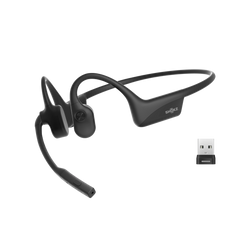
Press and hold the Volume+ button from powered off until Audrey says "pairing" and the LED flashes red and blue. The OpenRun Pro 2features the DualPitch bone-conduction + air-conduction system. Once paired, EQ modes can be switched through the Shokz App or directly on the headphones.
OpenDots ONE:
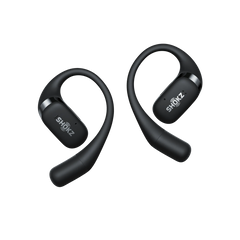
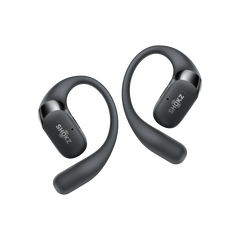
TheOpenDots ONEuses acharging case-based pairing system. Place both earbuds in the case, then press and hold the button on theback of the charging caseuntil the indicator lights flash orange and green. Then select "OpenDots ONE by Shokz" from the Bluetooth menu.Note: for first-time use, simply opening the case automatically starts pairing mode.
OpenFit 2+:
First-time setup is effortless, justopen the charging case,and the earbuds automatically enter pairing mode, with the LED flashing orange and green. After that, place both earbuds in the case andpress and hold the case button for 3 secondsuntil the orange and green lights flash, confirming pairing mode. Select "OpenFit 2+by Shokz" to complete.
OpenFit Pro:
Like the OpenFit 2+, theOpenFit Proenters pairing mode automatically when the charging case is opened for the first time. If you need to pair again, place both earbuds in the case andpress and hold the internal case button for 3 secondsuntil the orange and green indicator lights begin flashing, then select "OpenFit Pro by Shokz."
OpenSwim Pro:
TheOpenSwim Prois unique — it operates in both Bluetooth mode and MP3 mode. For Bluetooth pairing, start with the headphones powered off andpress and hold the Volume+ buttonfor 5–7 seconds until Audrey says "pairing" and the LED flashes red and blue.Select "OpenSwim Pro by Shokz" to pair. Note that multipoint pairing on the OpenSwim Pro is initiated by a separate button combination once normal pairing mode is active.OpenSwim Pro stores MP3 files internally and connects by Bluetooth to transfer files outside the water.
Connecting Shokz Headphones to Phones, Laptops & Smart Devices
Shokz headphones pair with far more than just phones — and knowing each platform's quirks helps avoid frustration.
- On iPhones and iPads, head to Settings > Bluetooth, make sure it's toggled on, and select the Shokz device name from the list. If it doesn't appear, check that another device isn't already connected.
-
Android Phones: Pull down the notification shade and tap the Bluetooth tile, or go to
Settings > Connected Devices > Pair New Device.
Android occasionally holds onto old Bluetooth profiles. If the connection fails, re-pair.
-
Windows Laptops: Go to Settings > Bluetooth & Devices > Add Device. Select Bluetooth, then choose your Shokz headphones. Windows sometimes needs the audio driver refreshed after connecting.
-
MacBooks: System Settings > Bluetooth > Connect. Macs can be fussy when AirPods or other Apple devices compete for priority; temporarily turning off automatic switching on other devices helps.
-
For smartwatches like Apple Watch or Garmin, check the watch's Bluetooth or music settings menu.
-
TVs and Fitness Equipment: Smart TVs and gym treadmills with Bluetooth audio output work well with Shokz headphones. Put the headphones in pairing mode and search for them in the device's Bluetooth menu.
One important tip across all devices: if the Shokz name doesn't appear in the list, ensure no other paired device is currently connected, as this can block discovery.
How to Connect Shokz Headphones After a Reset
A reset solves a lot of problems — but it also wipes the headphones' memory, which means your phone or laptop no longer recognises them as a known device. That's where the confusion usually starts.
In most cases, connection issues after a reset happen because your phone still remembers the previous Bluetooth profile. The headphones are essentially brand new again, but your device thinks it already knows them and tries to use outdated connection data. The fix is straightforward.
Post-Reset Reconnection Steps:
On your phone or device, go to Bluetooth settings and find your Shokz headphones in the paired device list.
- Select "Forget This Device" (iPhone) or "Unpair" (Android/Windows/Mac).
- Power off the headphones completely.
- Enter pairing mode following the model-specific steps in Section 3.
- Re-pair as a new device through your Bluetooth settings.
This clears both sides of the old connection, creating a clean pairing. Most reconnection problems resolve with this two-step approach — delete the old record, then pair fresh.
How to Connect Shokz Headphones to Multiple Devices
Multipoint pairing means the headphones stay connected to two devices simultaneously, automatically switching audio based on which one is active. The most common use cases are phone plus laptop, work phone plus personal phone, or a smartwatch plus phone for training sessions.
Which Models Support Multipoint?
The OpenRun Pro 2, OpenFit Pro, and OpenFit 2+ all support multipoint Bluetooth connection
How to Set Up Multipoint:
Pair the headphones to your first device using the standard pairing steps.
Without disconnecting from the first device, re-enter pairing mode.
Pair to the second device — your phone, laptop, smartwatch, or work device.
Both devices should now show as connected simultaneously.
Common Use Cases:
Laptop and phone: stay in a video call while your phone handles incoming calls
Work phone and personal phone: manage both without ever swapping headphones
Smartwatch and phone stream music from your watch during a run while keeping your phone connection live
What Happens During Incoming Calls?
When a call comes in on one connected device, the Shokz headphones automatically pause the music from the other device and switch to the incoming call. Once the call ends, music resumes.
Shokz App: Features, Benefits & Setup Guide
The Shokz App is genuinely one of the most useful things to set up after pairing. Available free on iOS and Android, the app works with the OpenRun Pro 2, OpenFit 2+, OpenFit Pro, OpenDots ONE, and OpenSwim Pro, unlocking features not accessible with button controls alone.
What the Shokz App does:
- Firmware updates: keep headphones running at their best. The app notifies when a new version is available and handles the update in the background.
- EQ and sound customisation: switch between preset EQ modes (Standard, Vocal, Bass Boost, Treble Boost) or create personalised settings to suit the listening environment.
- Multipoint pairing management: the easiest way to set up and manage dual-device connections, particularly for the OpenFit series and OpenDots ONE.
- Battery status: shows charge levels at a glance without having to check the headphones.
- Button and touch control customisation: reassign functions to suit the way the headphones are used day-to-day.
- Dolby Audio and Head Tracking (OpenFit Pro and OpenDots ONE): activates immersive audio modes for a richer listening experience.
How to set up the Shokz App:
- Download the Shokz App from the App Store or Google Play.
- Sign in or create a free account.
- Make sure headphones are connected via Bluetooth — the app detects the device automatically.
- Follow the in-app prompts to configure settings, check for firmware updates, and enable any desired features.
Quick Pairing Tips for Everyday Use
A few good habits make Shokz headphones easier to live with.
Keep firmware updated regularly — the Shokz App makes this effortless, and updates often bring meaningful improvements beyond just bug fixes.
Rename saved Bluetooth devices on the phone to something descriptive (like "Shokz Work Laptop" vs "Shokz Phone") so switching is faster and less confusing.
Disconnect Bluetooth connections that aren't being used: fewer active devices mean quicker, cleaner pairing.
And charge before long runs, commutes, or travel days; a full battery avoids the mid-workout silence that nobody needs.
Shokz headphones are designed to be easy.
For your commute, training, working, and everything in between. Once the pairing process makes sense and a multipoint connection is set up, managing these headphones becomes second nature.
The open-ear design means staying aware of the world while enjoying great audio, and with the Shokz App handling firmware, EQ, and device management, the experience only gets better over time.
Grab the right model, get paired up, and enjoy the freedom that wireless open-ear listening actually delivers.
Frequently Asked Questions
Q: Why won't my Shokz headphones enter pairing mode?
Your headphones weren't fully powered off before pressing the pairing button. Power down completely. Hold the button for 5–7 seconds until the LED flashes red and blue. If it’s still not working, do a factory reset.
Q: Which Shokz headphones support multipoint Bluetooth connection?
The OpenRun Pro 2, OpenFit Pro, and OpenFit 2+ support multipoint connection, allowing pairing with two devices at once. The Shokz App can also handle your settings.
Q: How do I reconnect my Shokz headphones after a factory reset?
On your device, go to Bluetooth settings, find your Shokz in the paired list, and select "Forget This Device." Then, put the headphones into pairing mode and reconnect to resolve post-reset issues.